Building an AI Agent Made Easy Thanks to the AI SDK
Part of the series AI Agents and MCP Server: Teaming Up for the Agentic Web
Before going any further, what's an AI Agent? Clarifying that concept will make the rest of the series easier to follow.
An AI Agent is software that uses a model to work toward a user's goal. It can interpret a natural-language request, decide whether it needs an external capability, use that capability, and continue until it can provide a useful result. This makes interactions with software more natural: the user describes the outcome they want instead of manually coordinating every step.
Throughout this series, we will use five terms consistently:
- An AI application is the chat product a person uses.
- An AI agent is the server-side orchestration that gives the model access to tools and lets it continue after using them.
- A tool is a function the agent can ask its host application to run.
- An MCP server exposes tools through the Model Context Protocol.
- An MCP client connects the agent to an MCP server.
What the Model Can Do
To keep the series focused, we'll work with text-based LLMs. In this example, the model can:
- Generate text from the messages it receives.
- Use the available context to decide what to say or do next.
- Request a tool call so the host application can perform an action outside the model.
Note
Depending on the provider, there may be additional functionalities available, like built-in tools or MCP tools. Ultimately, everything is considered a tool, whether it's a built-in function, an external API via MCP, or a custom tool.
When you interact with an AI, the model may use one or more of these capabilities. Its internal reasoning is model- and provider-specific, and it may not be exposed to your application. A model can also produce text before, between, or after tool calls.
The important part for us is this: after a tool call completes, the result must be given back to the model so it can decide what to do next. The latest models can call multiple tools, including in sequence or in parallel, and can generate progress updates around tool calls.
Without orchestration, a tool call may be the last event your application handles. The user would see that the calculation happened but would not receive the model's final answer. Our agent will handle that follow-up automatically.
Note
It's important to note that the AI does not run custom tools directly. It asks the client, via a dedicated response, to call the tool on its behalf. That's why defining tools is often just defining a JSON schema. I recommend reading the tool calling flow in the OpenAI documentation.
Continuing after a tool call
To solve this problem, the application needs a bounded loop. When the model asks for a tool, the application runs it, adds the result to the conversation, and lets the model continue.
In simplified pseudo-code, that looks like this:
messages = [userInput]

while (hasStepsRemaining) {
  response = AI.ask(messages)
  messages.push(response)

  if (response.hasReasoning()) {
    showProgress(response.reasoning)
  }

  if (response.isText()) {
    break
  }

  toolResult = runTool(response.toolCall)
  messages.push(toolResult)
}
response.hasReasoning() is optional: whether an application receives reasoning depends on the model and provider. When it is available, it can be shown as progress, but the full response must still be added to the conversation so the next step has the tool call and any associated model context. This loop is not the definition of an AI Agent. It is the mechanism that lets an agent work through a task across multiple model and tool steps.
Note
To avoid an infinite loop, define a maximum number of iterations.
Our agent
I think we're ready to start building our AI Agent.
For this series, we will use the AI SDK. We could have used a provider SDK such as OpenAI's or Anthropic's, but the AI SDK gives us a higher-level interface while keeping the provider interchangeable.
To make sure we're all on the same page, here's a quick overview of the infrastructure we're building.
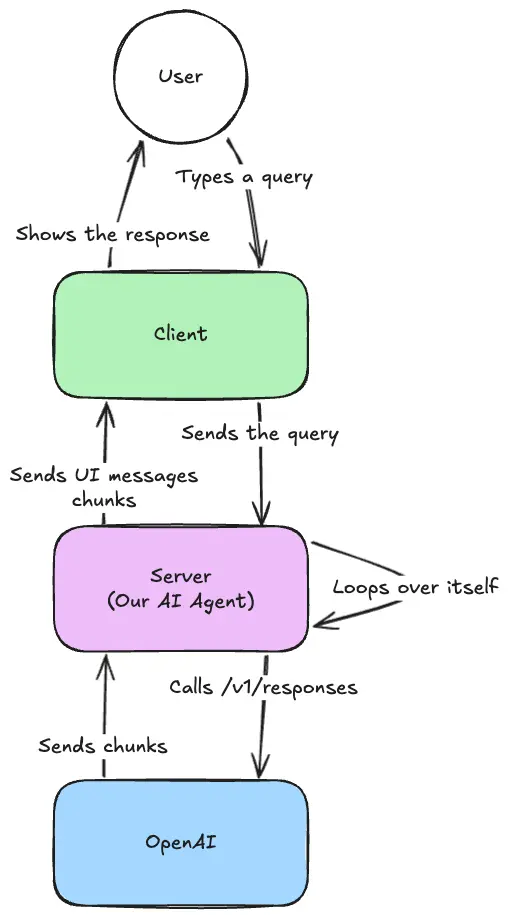
For this part, we'll focus on the server-side implementation and the communication with the provider.
To do so, we'll use Nitro, but you can use any JS backend framework of your choice.
Installation
First, create a new Nitro project:
pnpm dlx giget@latest nitro ai-agent --installThen remove the server/routes/index.ts file, which we won't need:
rm server/routes/index.tsStarting with the AI SDK
Now that our backend is set up, we can start working with the AI SDK.
Install the SDK:
pnpm add ai @ai-sdk/openaiWe also install the OpenAI adapter to communicate with the OpenAI API, but you can use any other adapter you prefer.
To communicate with OpenAI, set up an API key. You can obtain one by creating an account on the OpenAI website. Then set the OPENAI_API_KEY environment variable in your .env file:
NITRO_OPEN_AI_API_KEY=Finally, create a runtime variable within the Nitro configuration:
export default defineNitroConfig({
  runtimeConfig: {
    openAiApiKey: '',
  },
  // ...
})
Now we're ready to start building our AI Agent.
Streaming some text
The first step is to make sure our AI Agent can generate text based on user input. This may be more challenging than it seems, but the AI SDK provides a simple way to achieve it.
Create a new endpoint in the Nitro server that will receive the user query and return the AI-generated response:
mkdir server/api
touch server/api/chat.ts
Then create the endpoint in server/api/chat.ts:
import { createOpenAI } from '@ai-sdk/openai'
import { convertToModelMessages, streamText } from 'ai'
import { defineEventHandler, defineLazyEventHandler, readBody } from 'h3'
import { useRuntimeConfig } from 'nitropack/runtime'

export default defineLazyEventHandler(() => {
  const runtimeConfig = useRuntimeConfig()

  const model = createOpenAI({
    apiKey: runtimeConfig.openAiApiKey,
  })

  return defineEventHandler(async (event) => {
    const { messages } = await readBody(event)

    return streamText({
      model: model('gpt-5-nano'),
      system: `You are a helpful assistant.`,
      messages: convertToModelMessages(messages),
    }).toUIMessageStreamResponse()
  })
})There are two important sections in this file.
- Creating the OpenAI Model:
const model = createOpenAI({
  apiKey: runtimeConfig.openAiApiKey,
})
This creates the adapter for the OpenAI model. If you wish to use another provider, change the adapter creation code. This is also where we use the openAiApiKey from the runtime config.
- Streaming Text Responses:
return streamText({
  model: model('gpt-5-nano'),
  system: `You are a helpful assistant.`,
  messages: convertToModelMessages(messages),
}).toUIMessageStreamResponse()
The second important section is the streaming of text responses. We use the streamText function from the AI SDK to stream the AI-generated responses back to the client. We give it the model, a system prompt, and the user messages. The toUIMessageStreamResponse function transforms the response into a format suitable for building the frontend. If you want only the text, you could use toTextStreamResponse.
All of these components are wrapped in a lazy event handler to ensure the model is only created once, on the first request. This avoids having each request create a new model instance.
You can test your AI Agent endpoint using the following curl command:
curl -X POST http://localhost:3000/api/chat \
  -H "Content-Type: application/json" \
  -d '{
    "messages": [
      {
        "role": "user",
        "parts": [
          {
            "type": "text",
            "text": "Why is the sky blue?"
          }
        ]
      }
    ]
  }'
This command sends a sample user message to your /api/chat endpoint and streams back the AI-generated response.
At this stage, the endpoint can stream a text response.
Calling a tool
Now we can add a tool to our AI Agent. As a reminder, tools are functions that the AI Agent can call to perform specific tasks; the code runs on the server, not in the AI provider.
For this example, we'll add a simple addition tool. Before going further, install Zod to create schemas:
pnpm add zodNow add the addition tool to our AI Agent:
return streamText({
  model: model('gpt-5-nano'),
  system: `You are a helpful assistant.`,
  tools: {
    addition: tool({
      description: 'Adds two numbers',
      inputSchema: z.object({
        a: z.number().describe('The first number'),
        b: z.number().describe('The second number'),
      }),
      execute: ({ a, b }) => ({
        a,
        b,
        result: a + b
      }),
    }),
  },
  messages: convertToModelMessages(messages),
}).toUIMessageStreamResponse()
Finally, update our prompt to ensure the AI will use the new tool:
return streamText({
  model: model('gpt-5-nano'),
  system: `You are a helpful assistant. You can use the tool to add two numbers together.`,
  // ...
}).toUIMessageStreamResponse()
And let's give it a try:
curl -X POST http://localhost:3000/api/chat \
  -H "Content-Type: application/json" \
  -d '{
    "messages": [
      {
        "role": "user",
        "parts": [
          {
            "type": "text",
            "text": "What is 2 + 2?"
          }
        ]
      }
    ]
}'Notice what is missing from the response.
The AI performs the calculation using the addition tool:
data: {"type":"tool-output-available","toolCallId":"call_Zmi5NtcVDRFZsZHcsULlutnG","output":{"a":12,"b":24,"result":36}}The tool executed successfully, but this run stops after the tool result. The model has not yet received that result in a new step, so it has not generated a final answer such as "The answer is 36." We need to let it continue.
Making it an agent
The AI SDK handles the loop for us. We only need to set a maximum number of steps.
import { stepCountIs, streamText } from 'ai'

return streamText({
  model: model('gpt-5-nano'),
  system: `You are a helpful assistant. You can use the tool to add two numbers together.`,
  stopWhen: stepCountIs(2),
  // ...
}).toUIMessageStreamResponse()
The stopWhen: stepCountIs(2) option allows up to two steps: one for the tool call and one for the answer based on its result. The SDK also stops when the latest step produces a final text response. Real agents may need a higher, carefully bounded limit when a task requires several tools.
Note
I recommend reading the Loop Control page in the documentation to understand what happens under the hood.
Let's give it a try:
curl -X POST http://localhost:3000/api/chat \
  -H "Content-Type: application/json" \
  -d '{
    "messages": [
      {
        "role": "user",
        "parts": [
          {
            "type": "text",
            "text": "What is 2 + 2?"
          }
        ]
      }
    ]
}'Our agent can now use a tool and generate an answer from its output. In the next article, we will move that tool into an MCP server so it can be reused beyond this single application.

Thanks for reading! My name is Estéban, and I love to write about web development and the human journey around it.
I've been coding for several years now, and I'm still learning new things every day. I enjoy sharing my knowledge with others, as I would have appreciated having access to such clear and complete resources when I first started learning programming.
If you have any questions or want to chat, feel free to comment below or reach out to me on Bluesky, X, and LinkedIn.
I hope you enjoyed this article and learned something new. Please consider sharing it with your friends or on social media, and feel free to leave a comment or a reaction below, it would mean a lot to me! If you'd like to support my work, you can sponsor me on GitHub!
Discussions
Add a Comment
You need to be logged in to access this feature.