Deploying Our AI Agent to the World Using Cloudflare
Part of the series AI Agents and MCP Server: Teaming Up for the Agentic Web
This final part is optional: you can deploy the application and MCP server wherever you prefer. I chose Cloudflare because it is my daily platform for deploying JavaScript projects. We will make a small refactor to run the MCP server as a Cloudflare Worker, while leaving the agent and its Nuxt interface as a separate application.
Cloudflare provides several primitives for AI Agents and MCP servers. Our addition tool is stateless, so we can host it in a plain Worker. The MCP SDK's Web Standards transport works directly with the Worker's Request and Response APIs, so we do not need a Durable Object. A stateful MCP server would need persistent session management instead.
Setting up tooling
First, install the dependencies:
pnpm add -D wrangler @types/nodeThen add the following scripts to package.json:
{
  "scripts": {
    "dev:wrangler": "wrangler --config ./worker/wrangler.jsonc dev",
    "deploy:wrangler": "wrangler --config ./worker/wrangler.jsonc deploy",
    "cf-typegen": "wrangler --config ./worker/wrangler.jsonc types worker/worker-configuration.d.ts"
  }
}
We also need a wrangler.jsonc to configure our Cloudflare Worker. Create worker/wrangler.jsonc with the following content:
{
  "$schema": "node_modules/wrangler/config-schema.json",
  "name": "our-mcp",
  "main": "index.ts",
  "compatibility_date": "2025-03-10",
  "compatibility_flags": [
    "nodejs_compat"
  ],
  "observability": {
    "enabled": true,
    "head_sampling_rate": 0.1
  }
}
Note
The wrangler.jsonc file is not stored in the root directory to avoid conflicts when we will deploy the Nuxt application.
With this file, Wrangler will look for index.ts relative to the worker directory, which resolves to worker/index.ts. The configuration lives in the worker directory so it does not conflict with the Nuxt application's Cloudflare Pages deployment.
To finish the tooling setup, create a tsconfig.worker.json file to configure TypeScript for the Worker:
{
  "compilerOptions": {
    "target": "es2021",
    "jsx": "react-jsx",
    "lib": [
      "es2021"
    ],
    "module": "es2022",
    "moduleResolution": "bundler",
    "resolveJsonModule": true,
    "allowJs": true,
    "checkJs": false,
    "strict": true,
    "noEmit": true,
    "allowSyntheticDefaultImports": true,
    "forceConsistentCasingInFileNames": true,
    "isolatedModules": true,
    "skipLibCheck": true
  },
  "include": [
    "worker/worker-configuration.d.ts",
    "worker/**/*.ts"
  ]
}Add this file to the existing tsconfig.json in the references section:
{
  "files": [],
  "references": [
    {
      "path": "./.nuxt/tsconfig.app.json"
    },
    {
      "path": "./.nuxt/tsconfig.server.json"
    },
    {
      "path": "./.nuxt/tsconfig.shared.json"
    },
    {
      "path": "./.nuxt/tsconfig.node.json"
    },
    {
      "path": "./tsconfig.worker.json"
    }
  ]
}Now generate types:
pnpm run cf-typegenThis generates types for the Worker bindings and enables correct autocomplete in the worker files.
Don't forget to add the .wrangler folder to .gitignore to avoid committing it by mistake.
Moving the MCP Server to a Worker
Now that the tooling is ready, move the MCP server into a Cloudflare Worker. A Worker is an exported object with a fetch method. For our stateless addition tool, WebStandardStreamableHTTPServerTransport provides the Streamable HTTP transport directly through the Worker's standard APIs, without requiring a Durable Object.
Replace the old Nitro route with this complete worker/index.ts file:
import { McpServer } from '@modelcontextprotocol/sdk/server/mcp.js'
import { WebStandardStreamableHTTPServerTransport } from '@modelcontextprotocol/sdk/server/webStandardStreamableHttp.js'
import { z } from 'zod'

function createServer() {
  const server = new McpServer({
    name: 'ai-agent',
    version: '1.0.0',
  })

  server.tool(
    'addition',
    'Adds two numbers',
    {
      a: z.number().describe('The first number'),
      b: z.number().describe('The second number'),
    },
    async (params) => {
      return {
        content: [
          {
            type: 'text',
            text: String(params.a + params.b),
          },
        ],
      }
    },
  )

  return server
}

export default {
  async fetch(request: Request) {
    if (new URL(request.url).pathname !== '/mcp') {
      return new Response('Not found', { status: 404 })
    }

    const server = createServer()
    const transport = new WebStandardStreamableHTTPServerTransport({
      sessionIdGenerator: undefined,
      enableJsonResponse: true,
    })

    await server.connect(transport)

    try {
      return await transport.handleRequest(request)
    }
    finally {
      await transport.close()
      await server.close()
    }
  },
} satisfies ExportedHandler<Env>createServer creates a fresh MCP server for each request, and sessionIdGenerator: undefined disables MCP sessions. This prevents request state from being shared between clients. enableJsonResponse: true is appropriate for this request-response tool and lets us close the server and transport after the response has been created. The route check exposes the MCP server only at /mcp. You can now delete server/routes/mcp.ts.
We can start the development server to test our changes.
pnpm run dev:wranglerYou can test using either the AI application or the MCP Inspector.
Important
Change NUXT_MCP_ENDPOINT in your .env file to the local MCP endpoint: http://localhost:8787/mcp. Use the exact URL printed by Wrangler if it selects a different port.
Deploying to Cloudflare
Run:
pnpm run deploy:wranglerAfter deployment, Wrangler prints the Worker URL. Your MCP endpoint is the Worker URL followed by /mcp, for example https://our-mcp.<your-subdomain>.workers.dev/mcp.
To deploy the AI application, run:
SERVER_PRESET=cloudflare_pages pnpm run build && npx wrangler --cwd dist pages deployThe last step is to set up environment variables in your Cloudflare Pages project. Add NUXT_OPEN_AI_API_KEY as a secret and NUXT_MCP_ENDPOINT as plain text, using the deployed Worker MCP endpoint URL.
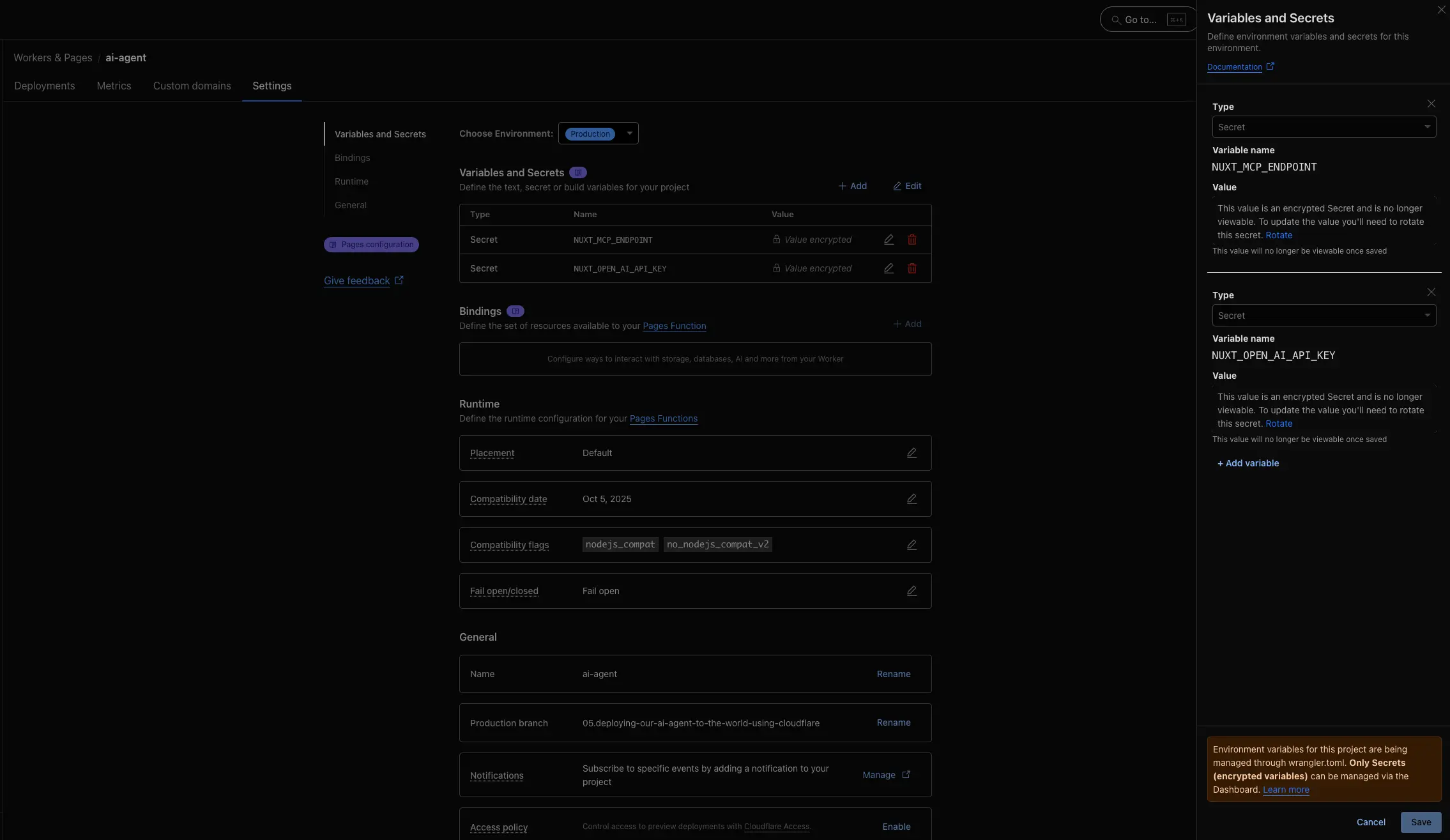
Your AI application is now deployed and can use the MCP server running on Cloudflare.
The series is complete: we built an agent, moved its capability behind MCP, connected it to a chat interface, and deployed both pieces.

Thanks for reading! My name is Estéban, and I love to write about web development and the human journey around it.
I've been coding for several years now, and I'm still learning new things every day. I enjoy sharing my knowledge with others, as I would have appreciated having access to such clear and complete resources when I first started learning programming.
If you have any questions or want to chat, feel free to comment below or reach out to me on Bluesky, X, and LinkedIn.
I hope you enjoyed this article and learned something new. Please consider sharing it with your friends or on social media, and feel free to leave a comment or a reaction below, it would mean a lot to me! If you'd like to support my work, you can sponsor me on GitHub!
Discussions
Add a Comment
You need to be logged in to access this feature.